Software — MbltPlc
MBLT PLC
Program an ESP32 or an Arduino the way you program a PLC.
Early release 0.1.0
MbltPlc — command line and desktop app
What it does
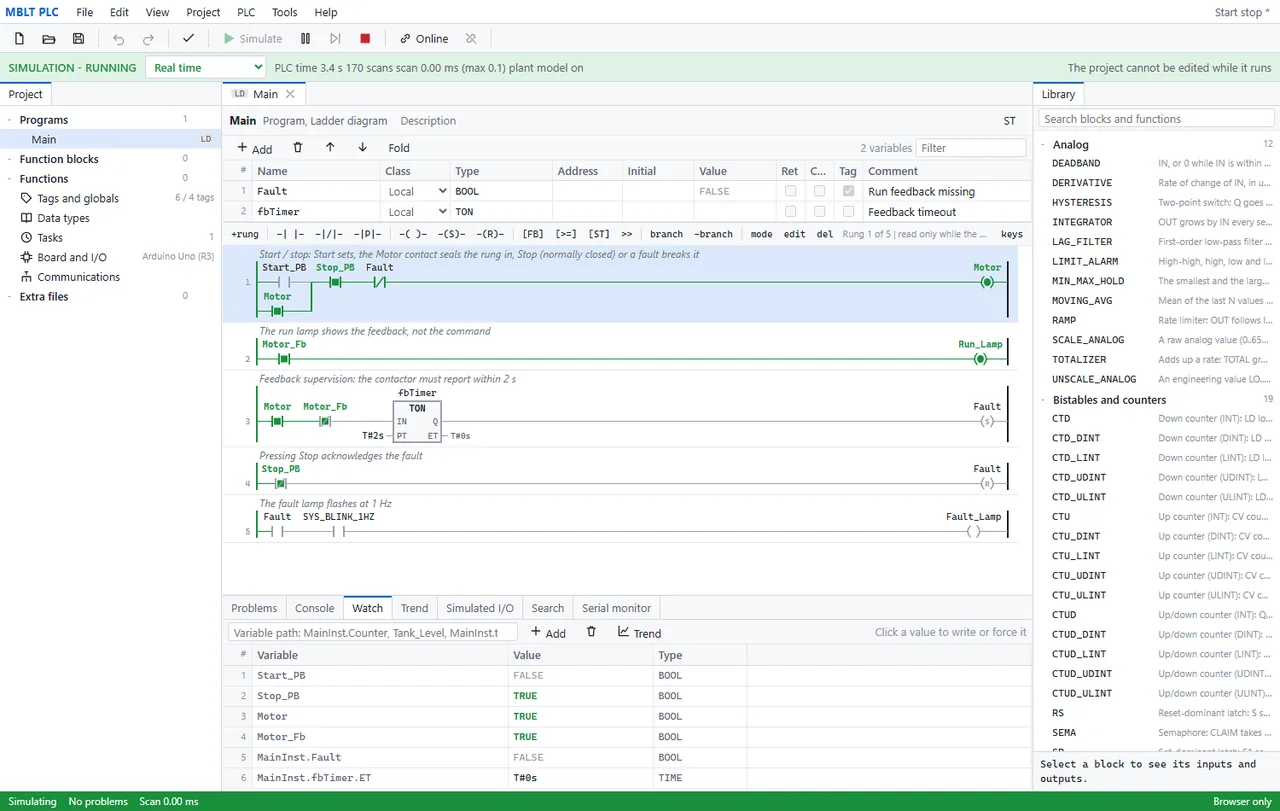
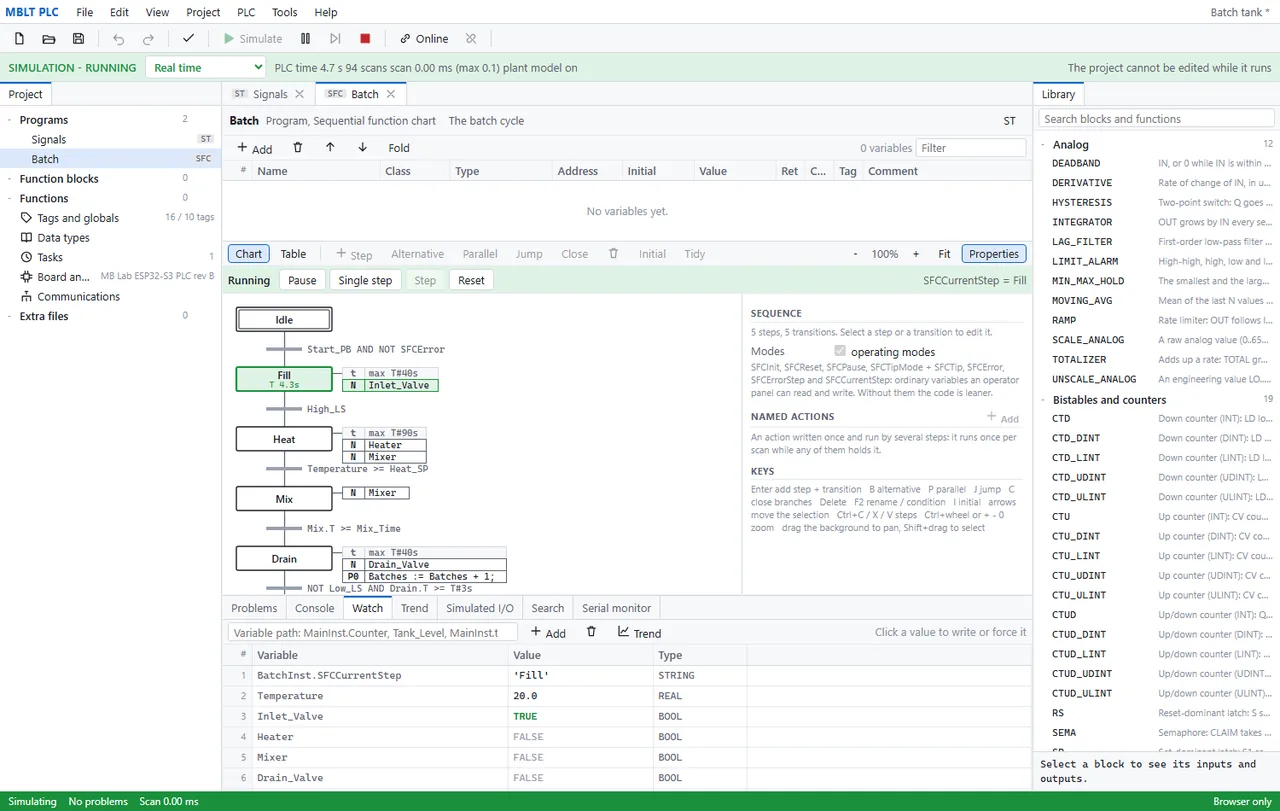
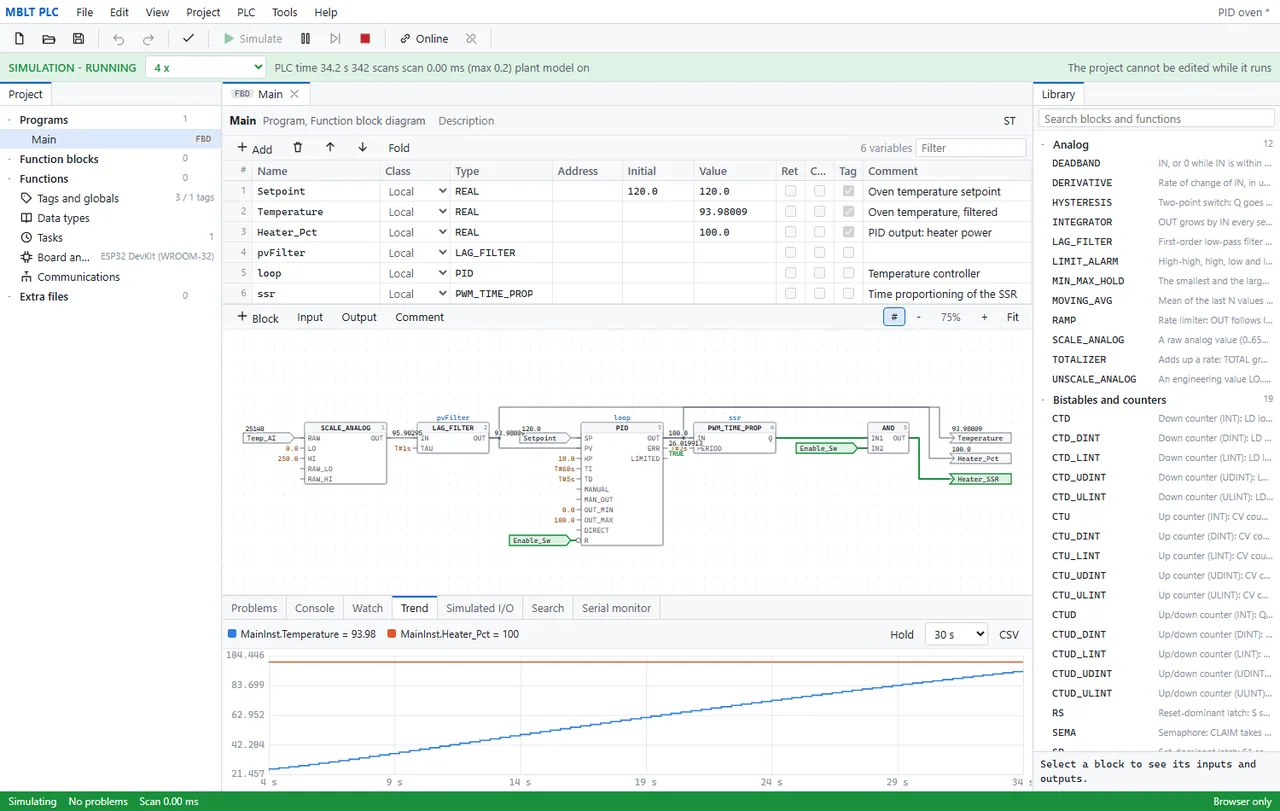
Ladder, function block diagram, sequences, structured text, instruction list and C/C++ for ESP32, Arduino, STM32, Teensy and 44 other boards. Try the program in the simulator, build it into firmware, go online with the running board, and hand its tags to Excel, SCADA or MBLT HMI through the gateway.
- Six languages - ladder, FBD, SFC, structured text, instruction list with the STL mnemonics, and C/C++
- A resumable simulator with breakpoints, stepping, forces and plant models, so the program runs before any hardware does
- 48 boards plus any Arduino FQBN, with a per-channel I/O table
- Build to firmware and go online with the running board
- CAN both ways - receive and transmit, mapped signal by signal with start bit, length, endianness, scale and offset, over TWAI on ESP32, FlexCAN on Teensy or an MCP2515 on any board's SPI
- Modbus as a slave over RTU and TCP, and as a master polling other devices into the process image - the OpenPLC address map, function codes 1 to 23
- Serial free-form, TCP, UDP and HTTP from the program itself
- It is an SCPI instrument itself - the mandatory command set plus stream and PLC commands, on a serial line always and on TCP 5025, so a sequencer or a terminal drives it like any other instrument, with no network needed
- Tags out over Modbus TCP, OPC UA, MQTT and a stream port
- The OPC UA server is written here from the specification - IEC 62541 parts 3, 4 and 6 - with no OPC Foundation stack and no third-party package, and it is checked against node-opcua 2.186, the library inside Node-RED's OPC UA nodes, in both directions: its client against this server, and this client against its server
- 87 worked samples, a 119-page manual and a 76-page C/C++ guide
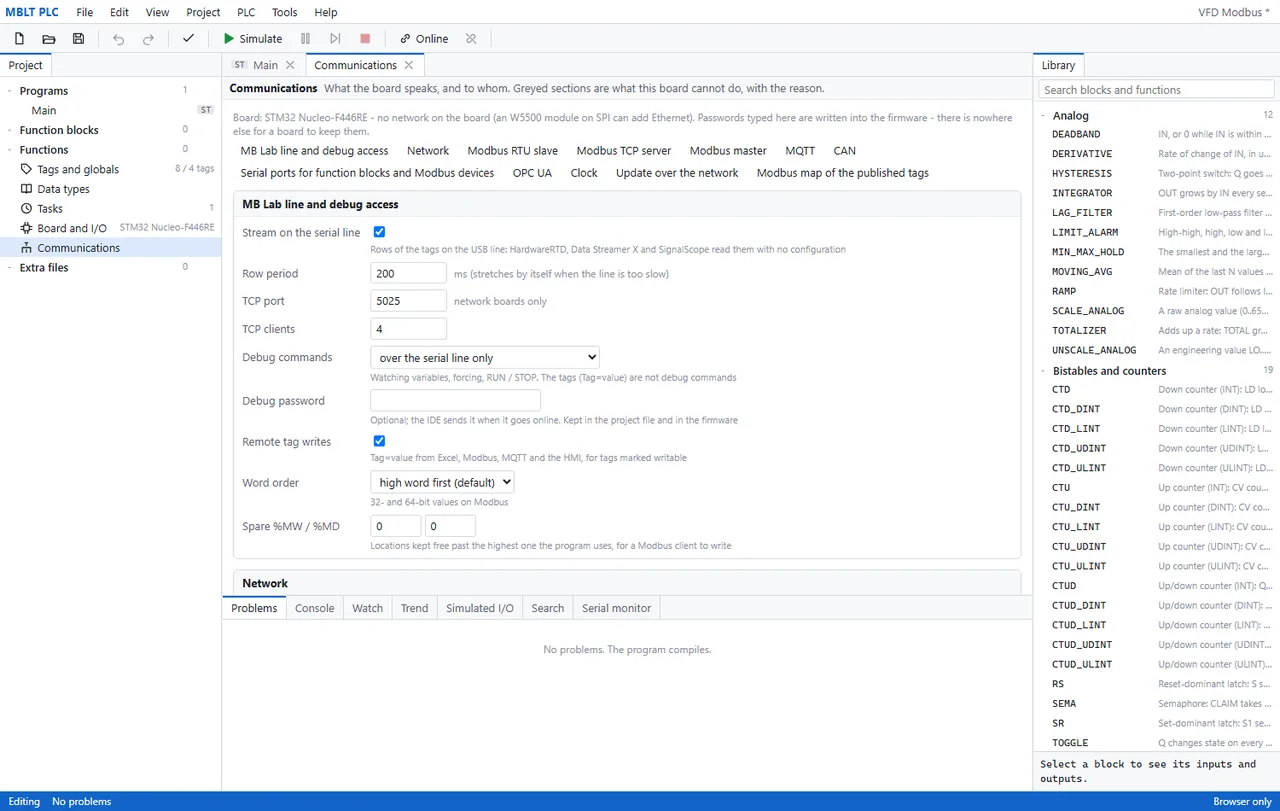
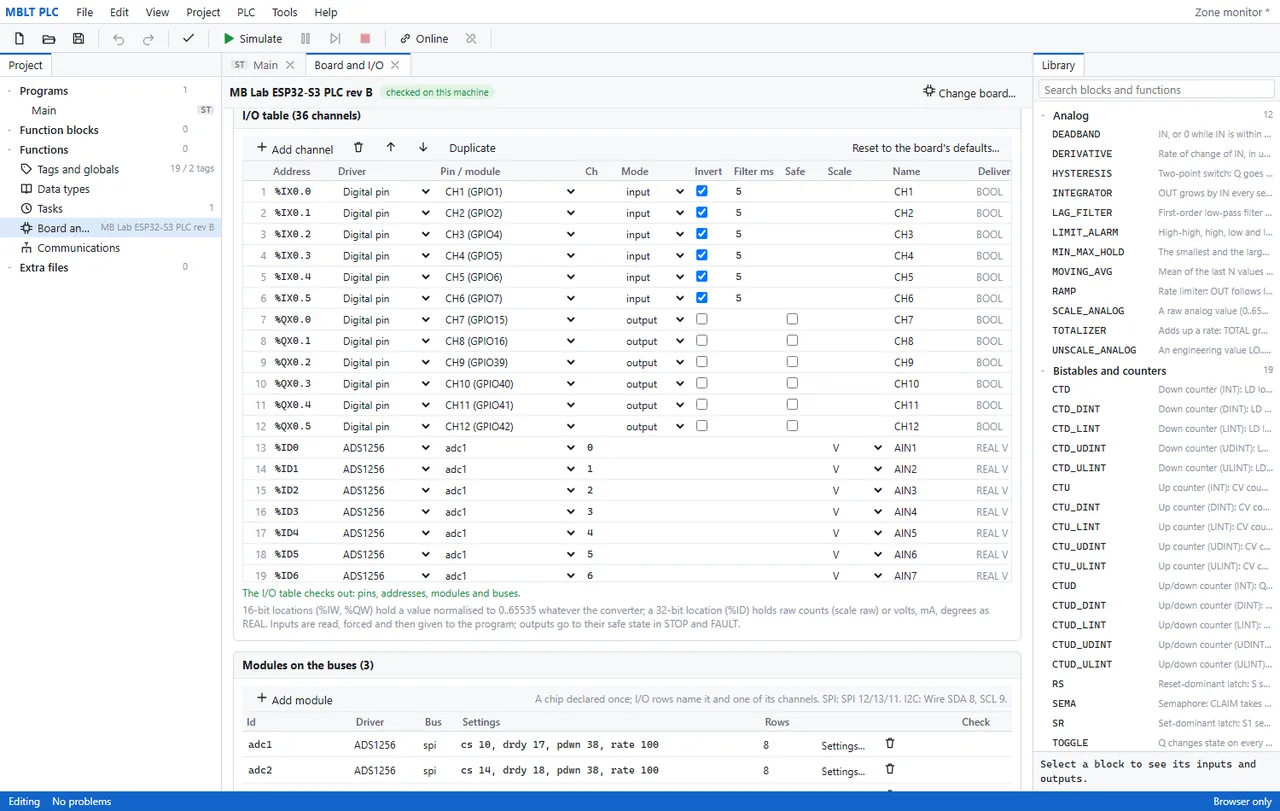
Worth knowingNot a safety PLC. This is a controller for machines and benches; emergency stops and guards belong on certified safety devices and are never programmed here. The manual says so on page one. On CAN, the TWAI, FlexCAN and MCP2515 drivers are built; the UNO R4 and STM32 bxCAN drivers are written but not compiled in this release.
On video
Fourteen recordings of it actually running.
Screens of a program that moves are only half of it, so here it is moving. The programs running in the simulator, one clip per language and one with all six at once. The watch lists and the trends are live; nothing is a mock-up of a running program. Both looks are here: the first seven are the flat frame, the last seven the raised one, and the difference between them is View > Look rather than a second set of screens. Nothing plays until you press it.
Getting started
What it looks like to actually use it.
Four steps from an empty window to a running motor starter with a forced input. No board is needed for any of it - the simulator is the whole PLC.
-
1
Start a project, and pick the board
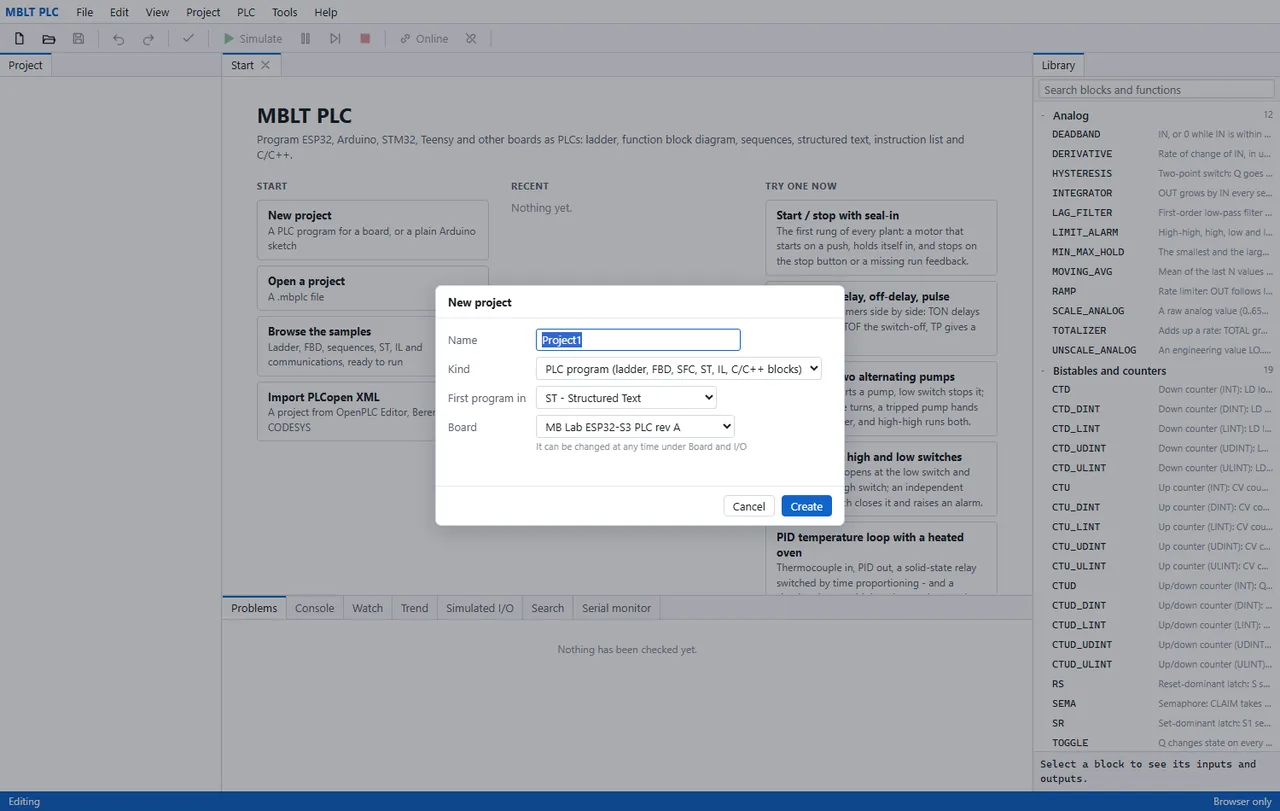
New project asks three things: which languages the first program is in, what the board is, and what to call it. The board here is the MB Lab ESP32-S3 PLC, but it can be any of 48 boards or any Arduino FQBN, and it can be changed later under Board and I/O. If you would rather read than start from nothing, the right-hand column opens a worked sample - a start/stop seal-in, alternating pumps, a PID oven.
-
2
Draw one rung
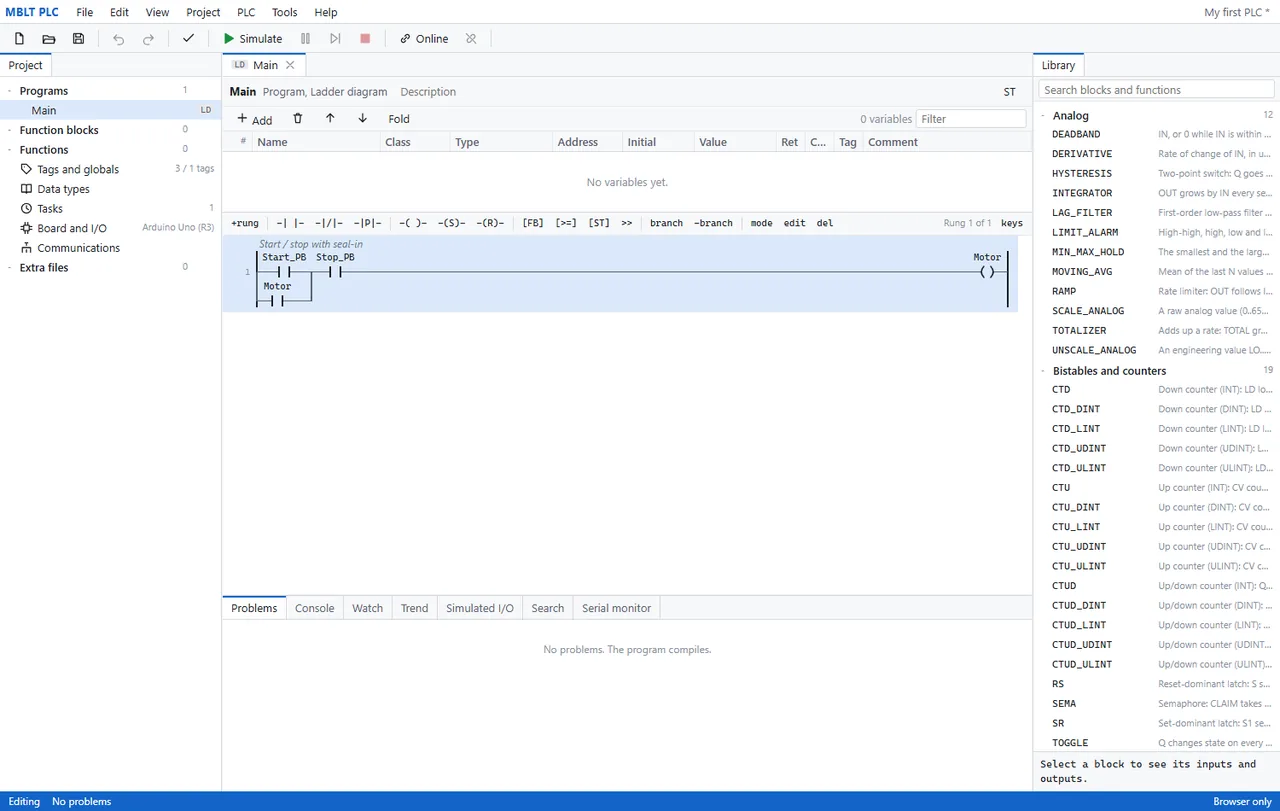
The classic first rung of any plant: a motor that starts on a push button, seals itself in through its own contact, and drops out on the stop button. The toolbar above the rung is the whole ladder palette - contacts, coils, set and reset, function blocks and a branch. The status bar already says 'No problems. The program compiles', because it is compiled as you type rather than when you build.
-
3
Run it with no hardware attached
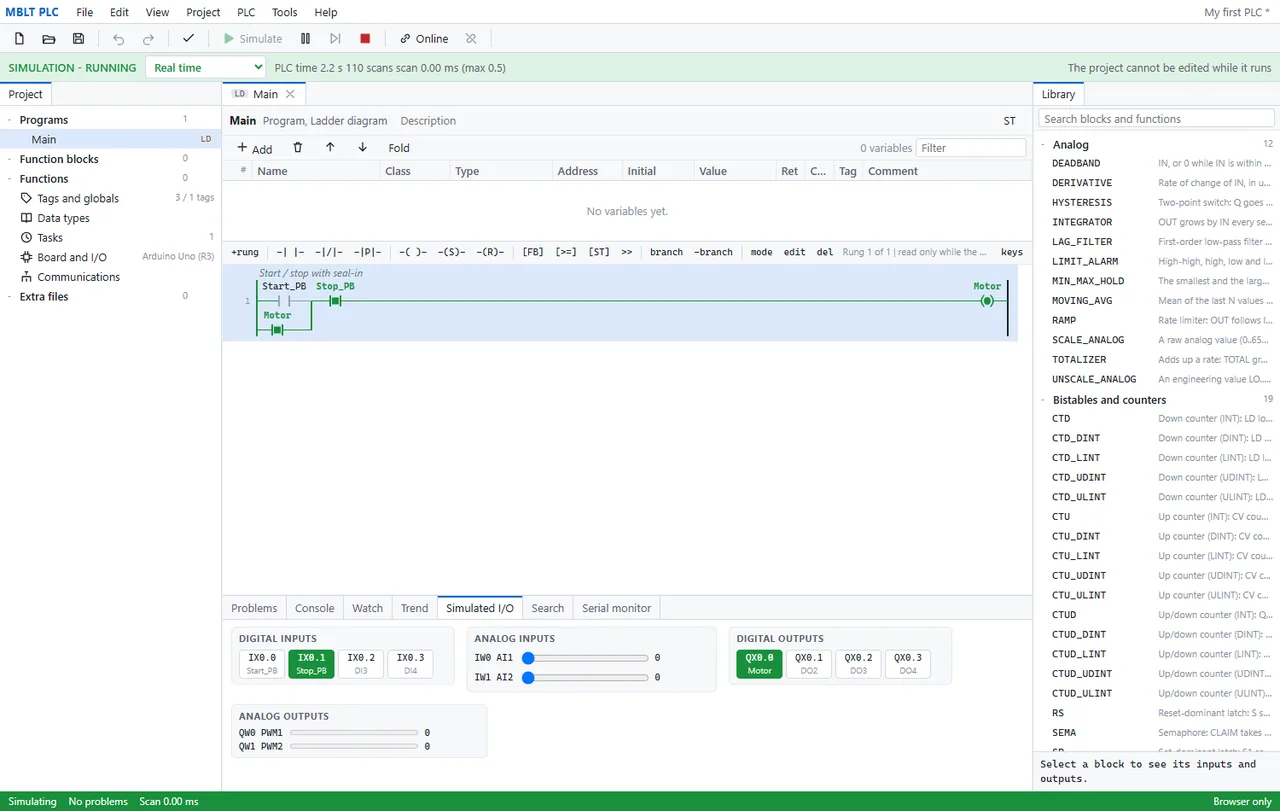
Simulate turns the program on. Live power flow is drawn in green, so you can see the rung conducting and the Motor coil energised. The Simulated I/O panel at the bottom is the fake plant: click a digital input to toggle it, drag an analog input to sweep it, and watch the outputs respond. The header reports real PLC timing - 110 scans in 2.2 s, scan time well under the limit.
-
4
Force a value, and understand the difference
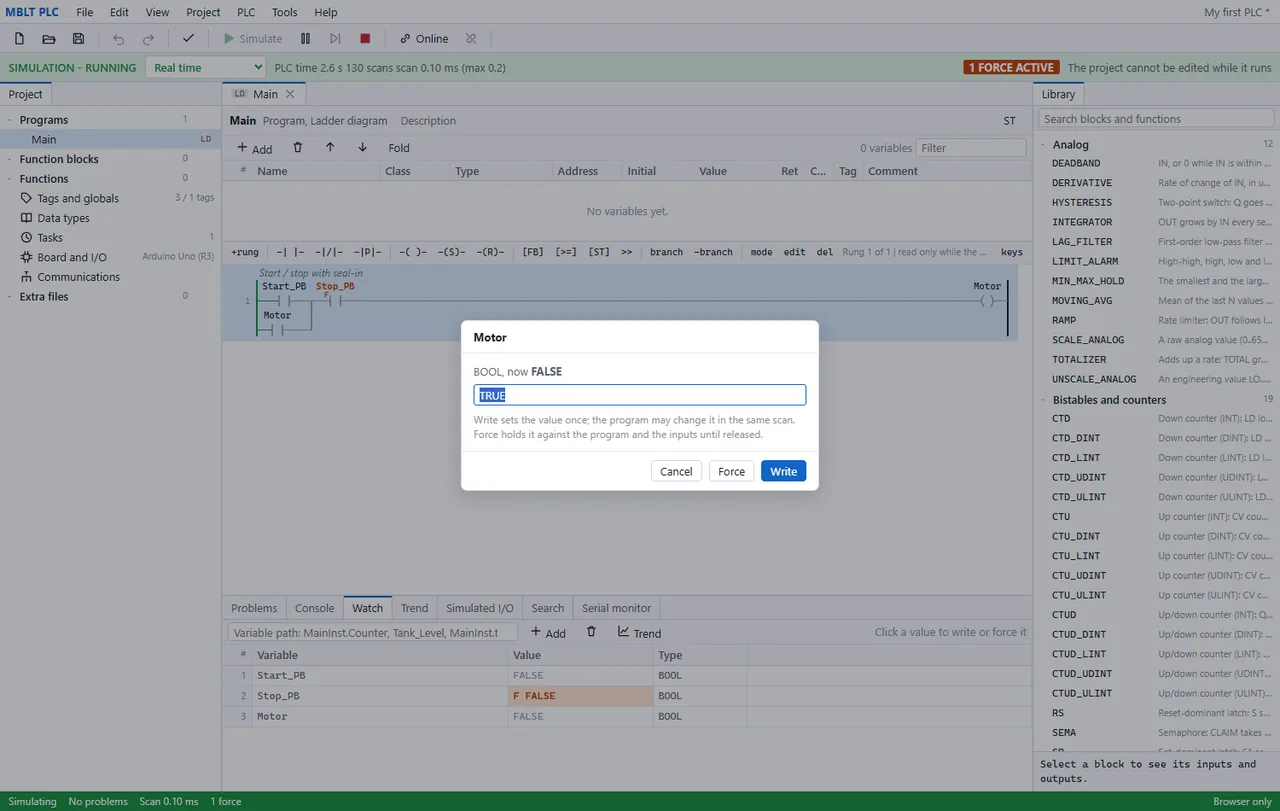
Clicking any value offers Write or Force, and the dialog explains the distinction that catches people out: a write sets the value once and the program may overwrite it in the same scan, while a force holds it against both the program and the inputs until you release it. A forced tag is marked F in the watch list and on the rung, and the header carries a standing 1 FORCE ACTIVE warning so a forced value can never be forgotten.
The other way in
When the job wants C++ instead.
The same program, written in C/C++ and then used from ladder like anything else in the library. Four steps, and the last one is the only place real hardware appears.
-
1
Add a unit, and say what language it is in
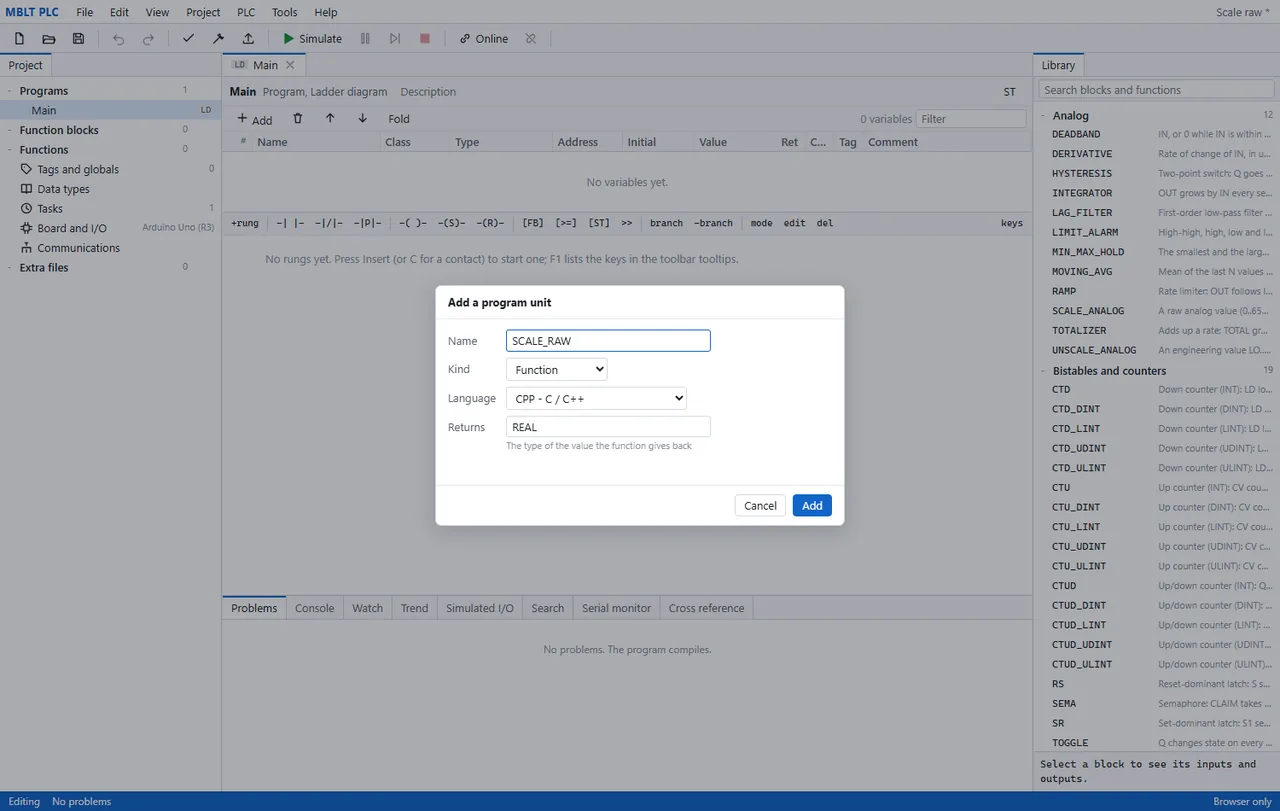
A program unit takes a name, a kind - function, function block or program - a language, and for a function the type it gives back. Picking CPP here is the whole decision; the rest of the project does not need to know. The ladder behind is still empty, which is the point: this is a first step, not a last resort.
-
2
Write the body, with the inputs already in scope
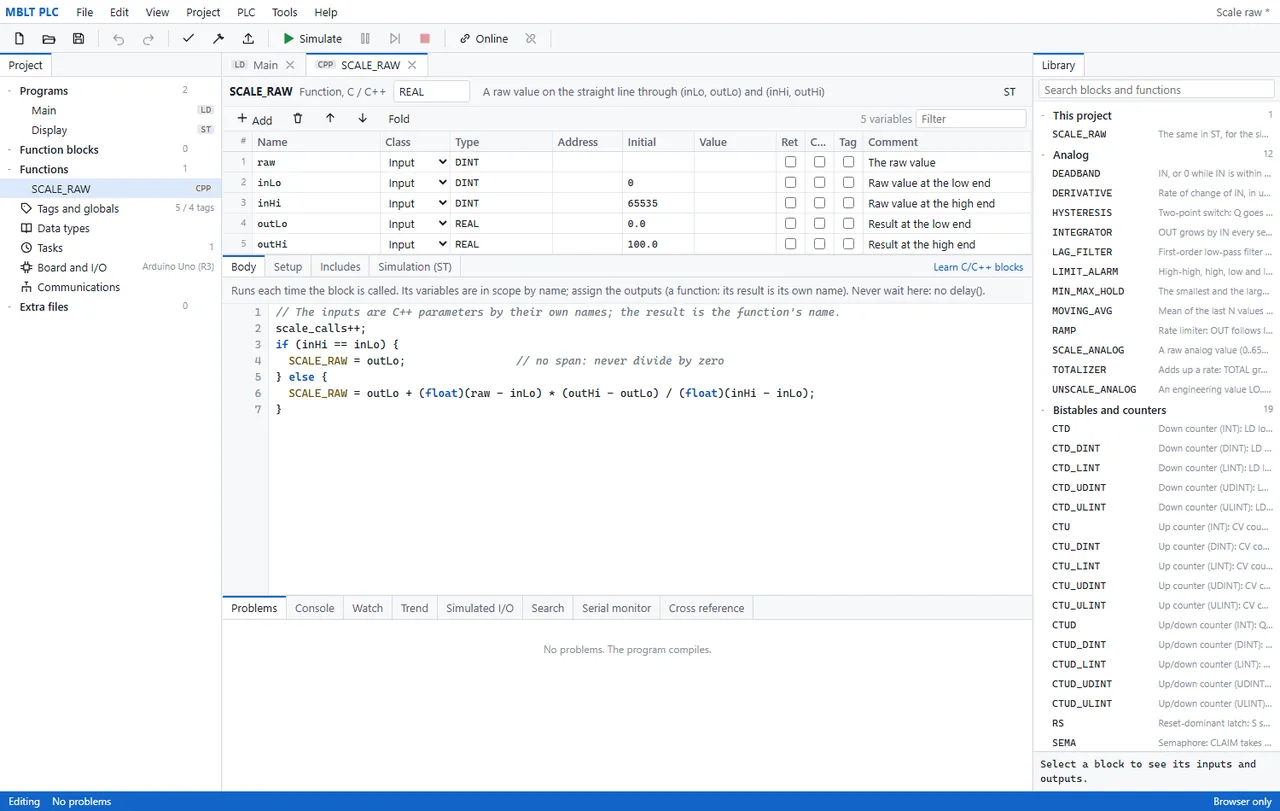
The variables table above the editor is the block's interface - raw, inLo, inHi, outLo, outHi - and they arrive in the C++ as parameters under those same names, with the result assigned to the function's own name. The note above the code says the two things that bite: it runs every time the block is called, and you must never wait in here. The guard against a zero span is in the body because a scaling function without one divides by zero eventually.
-
3
Use it from ladder, and watch it work
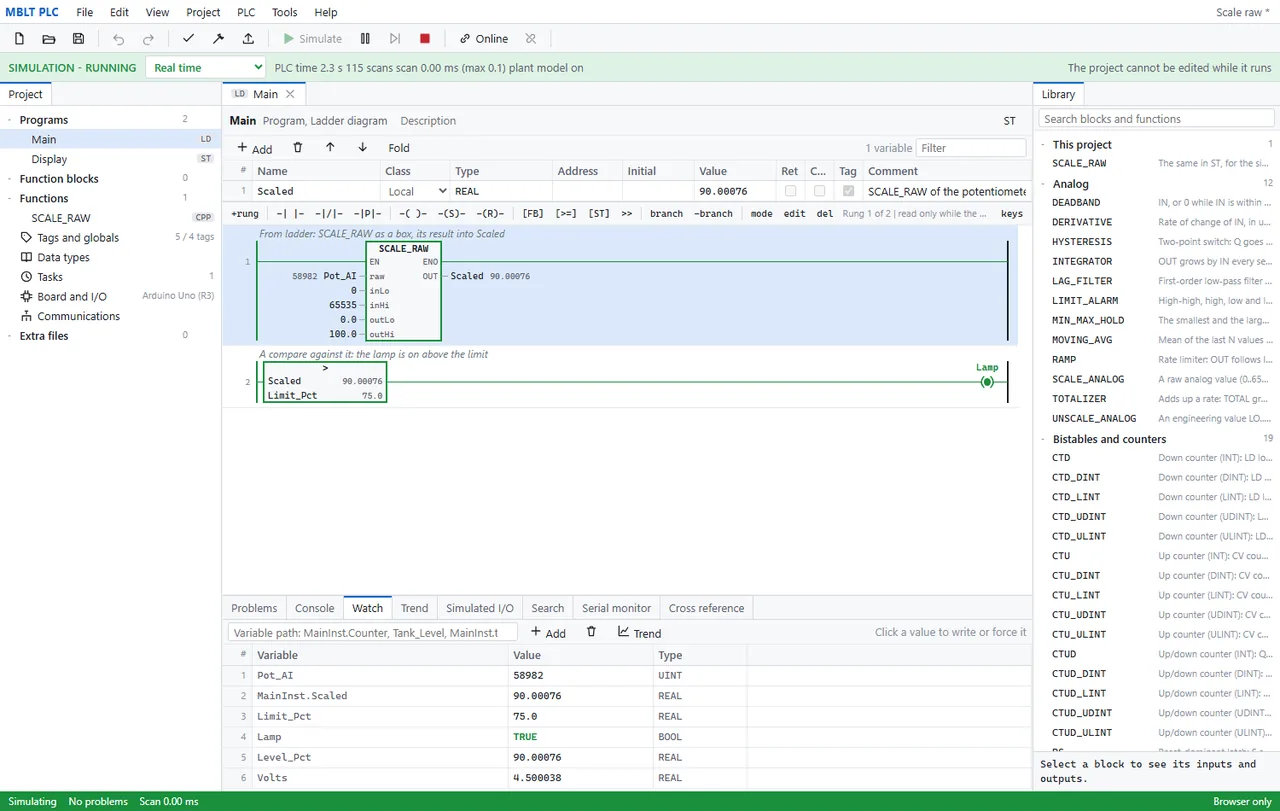
SCALE_RAW is now a box with EN and ENO like any other, taking a potentiometer reading of 58982 counts and putting 90.00076 percent into Scaled; the next rung compares that against a 75 % limit and lights the lamp. Running in the simulator at real time, 115 scans in, worst-case scan 0.1 ms. The Watch table underneath carries the same values, and a click writes or forces one.
-
4
Put it on the board, and be told what that costs
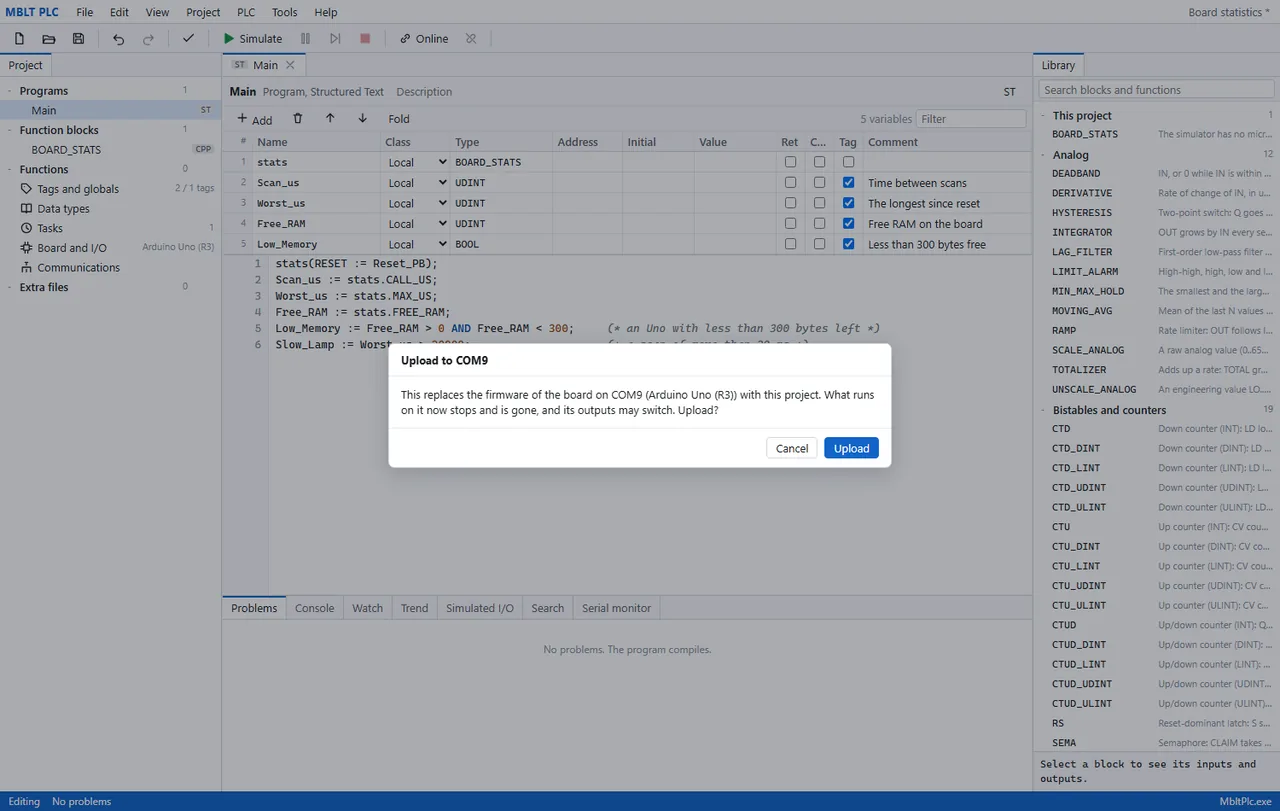
The only step that needs hardware, and the dialog does not soften it: this replaces the firmware on COM9, what runs there now stops and is gone, and its outputs may switch. Behind it is a C++ function block reporting the board's own scan time, worst case and free RAM - with a flag for an Uno down to its last 300 bytes, which is the sort of thing you want to know before the plant does.
And the third way
When the job wants a plain Arduino sketch.
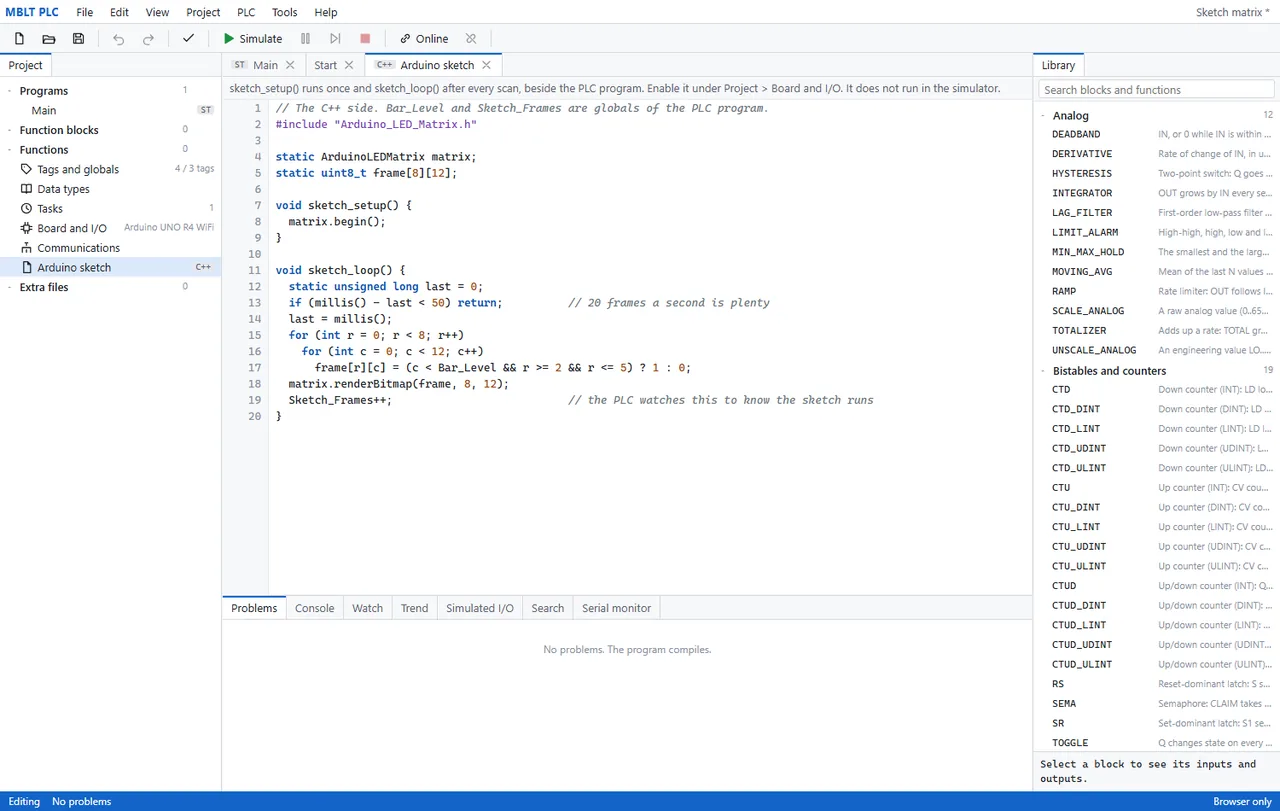
Arduino code running beside the PLC program - or instead of it. Four steps, and the third one is about what the simulator deliberately will not do for you.
-
1
Turn the hooks on
One tick under Board and I/O: sketch_setup() and sketch_loop() run beside the PLC. The rest of that panel is what a board does when things go wrong - a run/stop input that holds the PLC stopped whatever the IDE says, a status LED that blinks differently in STOP and FAULT, divide by zero stopping with outputs safe, and a hardware watchdog for a scan that hangs. Underneath, how much of this Uno's 32 KB of flash and 2 KB of RAM the process image has taken: nine bytes.

-
2
Write it, with the PLC's tags already in scope
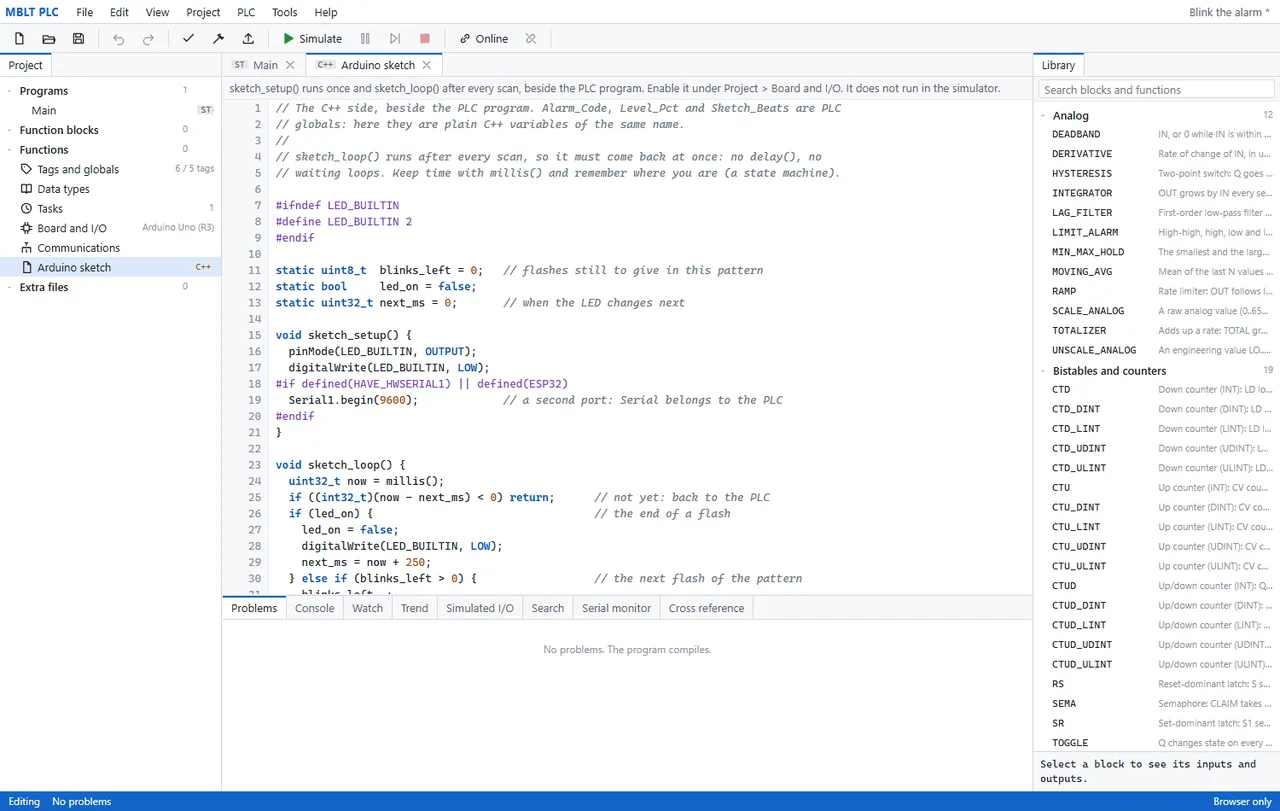
sketch_setup() runs once and sketch_loop() after every scan. The PLC globals - Alarm_Code, Level_Pct, Sketch_Beats - are plain C++ variables of the same name here, so the two halves share state without a protocol between them. Two rules sit in the comments, both of them the kind you learn once: come back at once, with no delay() and no waiting loops, keeping time with millis() instead; and leave Serial alone, because it belongs to the PLC - take Serial1 if the board has one.
-
3
Simulate, and watch the sketch not run
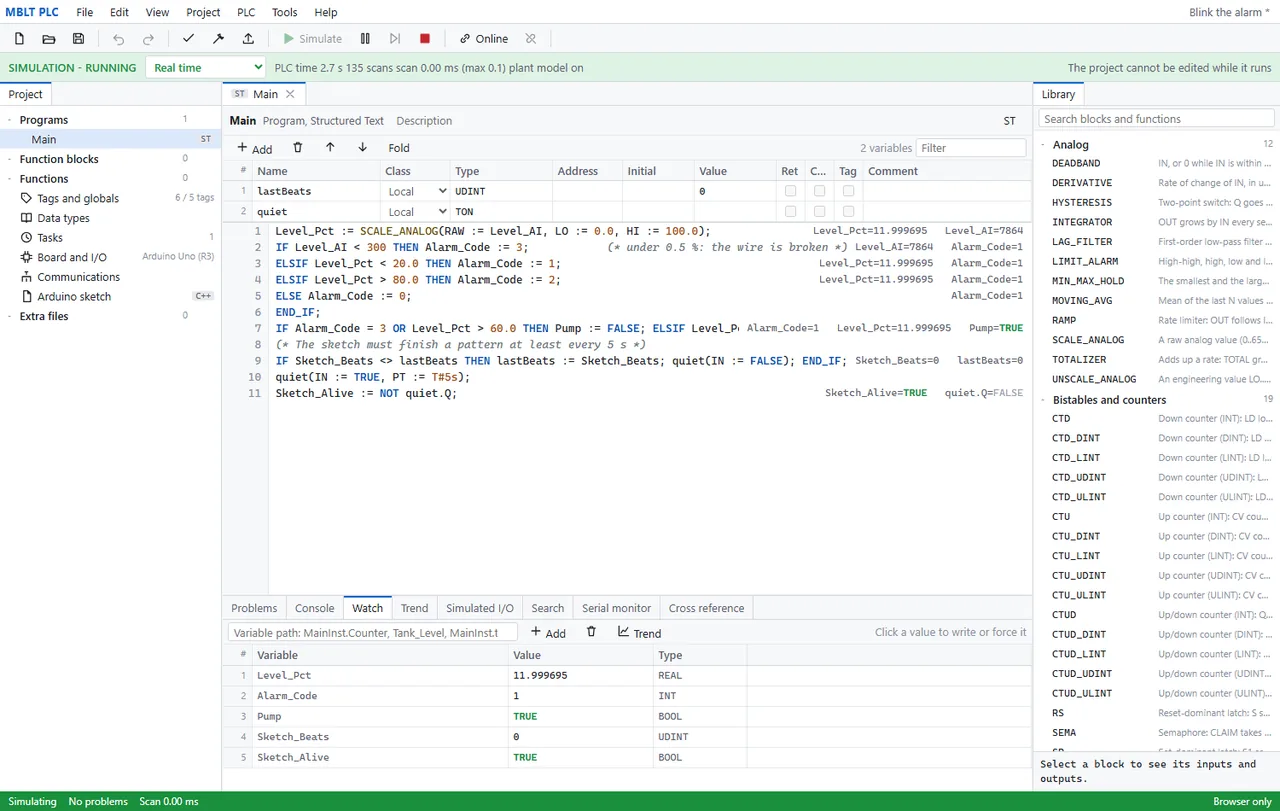
The PLC half runs: the level scales, the alarm code lands on 1, the pump is true, and every value is printed beside the line that set it. But Sketch_Beats stays at 0, because the sketch does not run in the simulator - the application says so at the top of its own tab. Which is why the program is written the way it is: a five-second timer watching for that beat to change, so the PLC knows when the C++ half has stopped talking to it. Simulating proves the logic; the sketch only comes alive on the board.
-
4
Or skip the PLC entirely
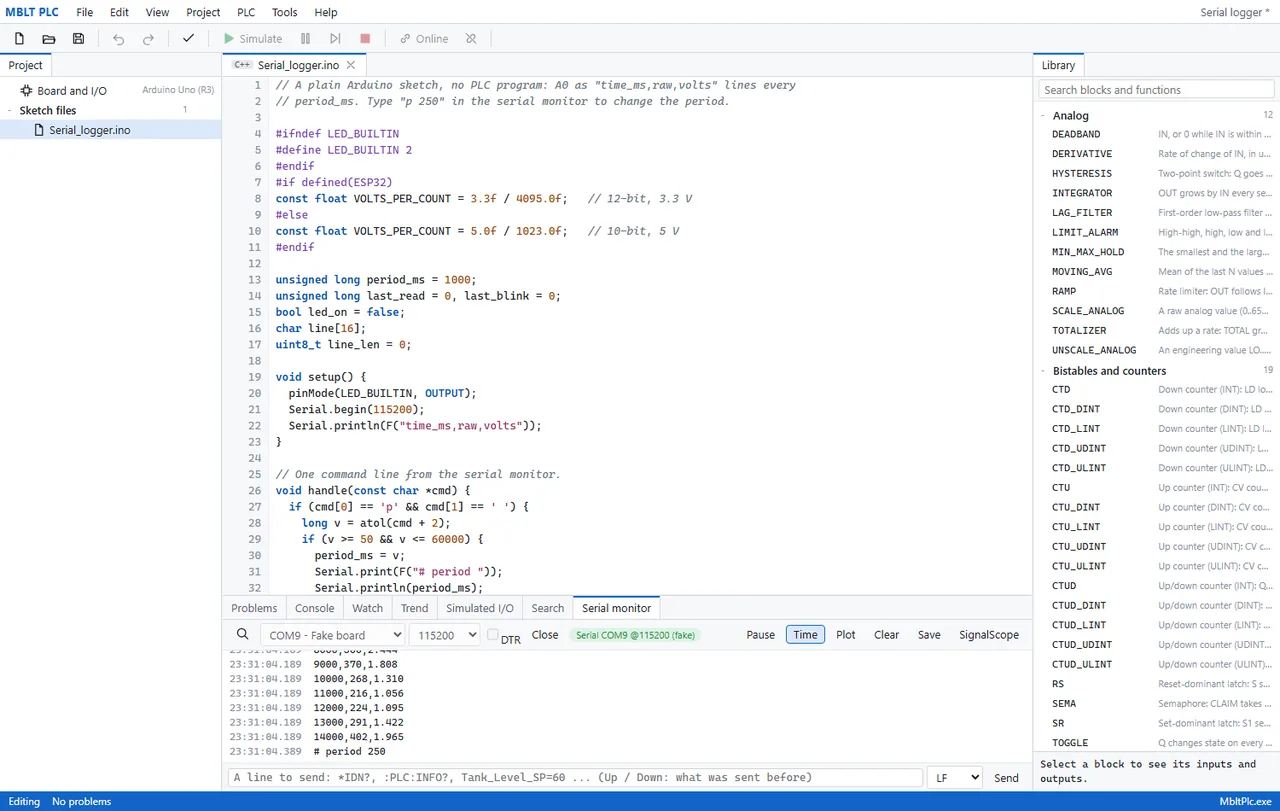
A different project, and the whole of it: one .ino, no PLC program, no tags - A0 logged as time, raw count and volts, with a one-letter command from the serial monitor to change the period. The monitor is the IDE's own, and the board it is talking to here is a fake one, so a protocol can be worked out before any hardware arrives. The buttons along the top of it are the useful part: plot the numbers, save them, or hand the stream straight to SignalScope.
And when it is on the board
Build it, upload it, and debug what is actually running.
The simulator cannot tell you a scan time or how much RAM is left, because it has neither. This is the part that can, and the part that refuses to guess.
-
1
Build it, and find out what it costs
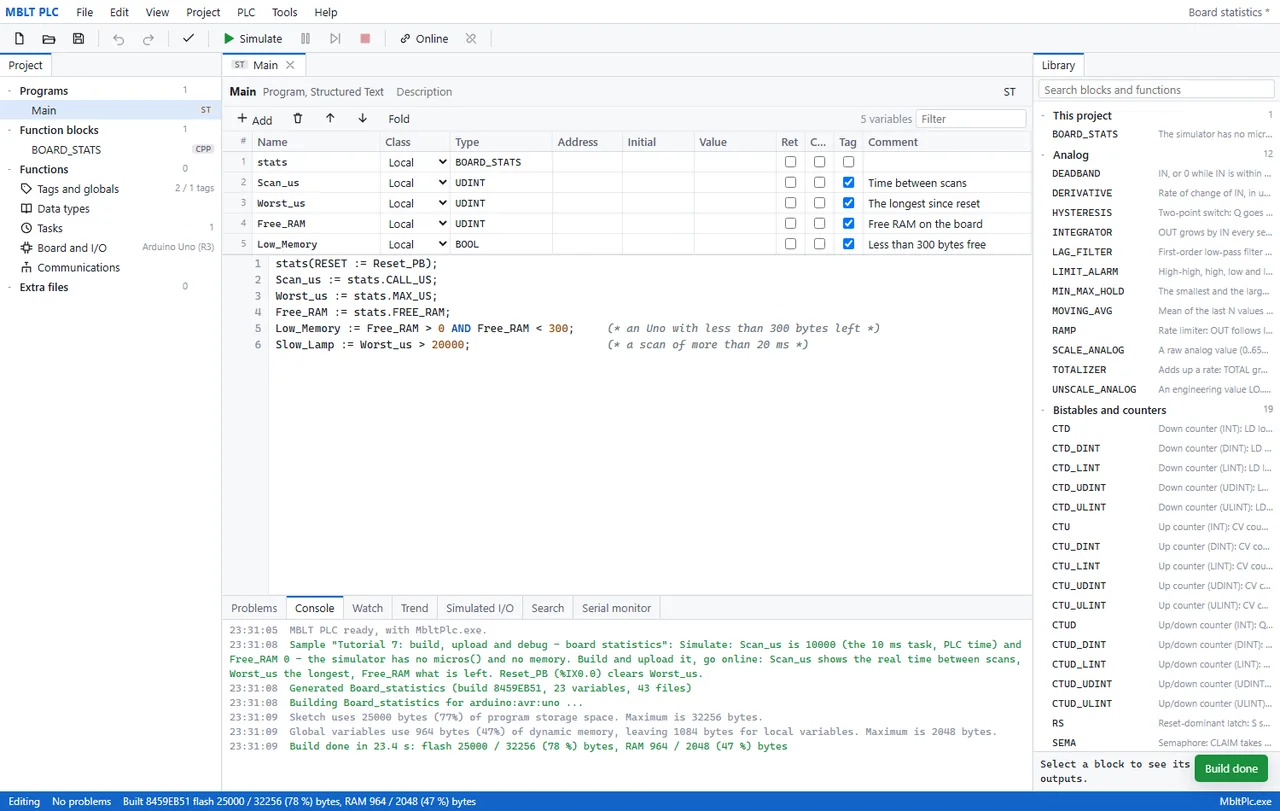
The console is the whole story: the project generated, then built for arduino:avr:uno, then the two numbers that decide whether it fits - 25000 of 32256 bytes of flash at 78 %, and 964 of 2048 bytes of RAM at 47 %, leaving 1084 for local variables. Twenty-three seconds. The status bar keeps the build id, which matters in the last step.
-
2
Get it wrong, and be told where
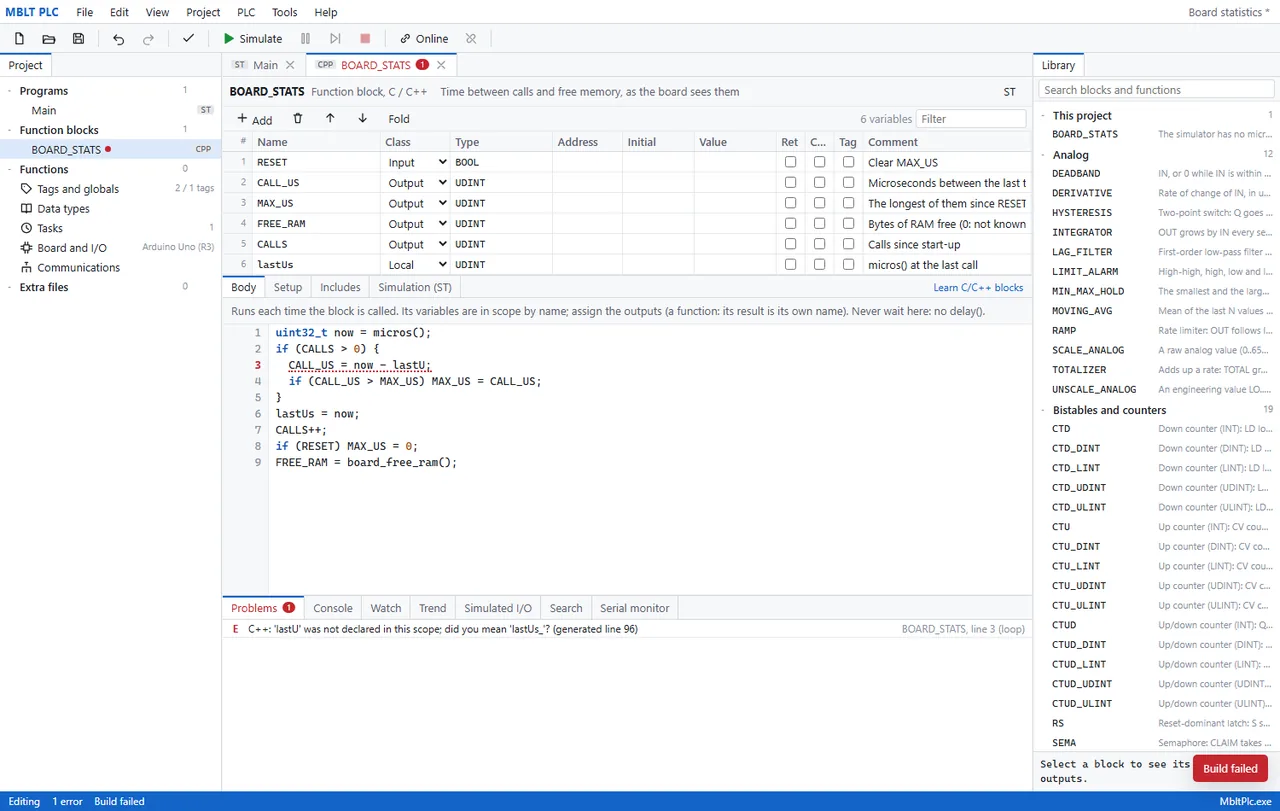
One letter missing - lastU for lastUs - and the build stops. What makes it usable is the mapping: the compiler complained about generated line 96, and the problem is reported against BOARD_STATS line 3, which is the line actually typed, underlined in the editor. The compiler's own suggestion comes through intact. Your C++ becomes part of a much larger generated file, and without that mapping every error would arrive with a line number that means nothing.
-
3
Go online, and read the values out of the running program
ONLINE - RUN, 182 scans, scan 0.85 ms with a worst case of 1.2 - numbers the simulator printed as a flat 10000 and a zero, because it has no micros() and no memory. The live values are annotated into the C++ source itself, line by line: 48393 calls, 10248 microseconds since the last one, 11872 at worst, 1004 bytes of RAM free. The link here is a fake board rather than hardware - the console says so - which is how this whole sequence runs before an Uno is plugged in.

-
4
And when the board is running something else
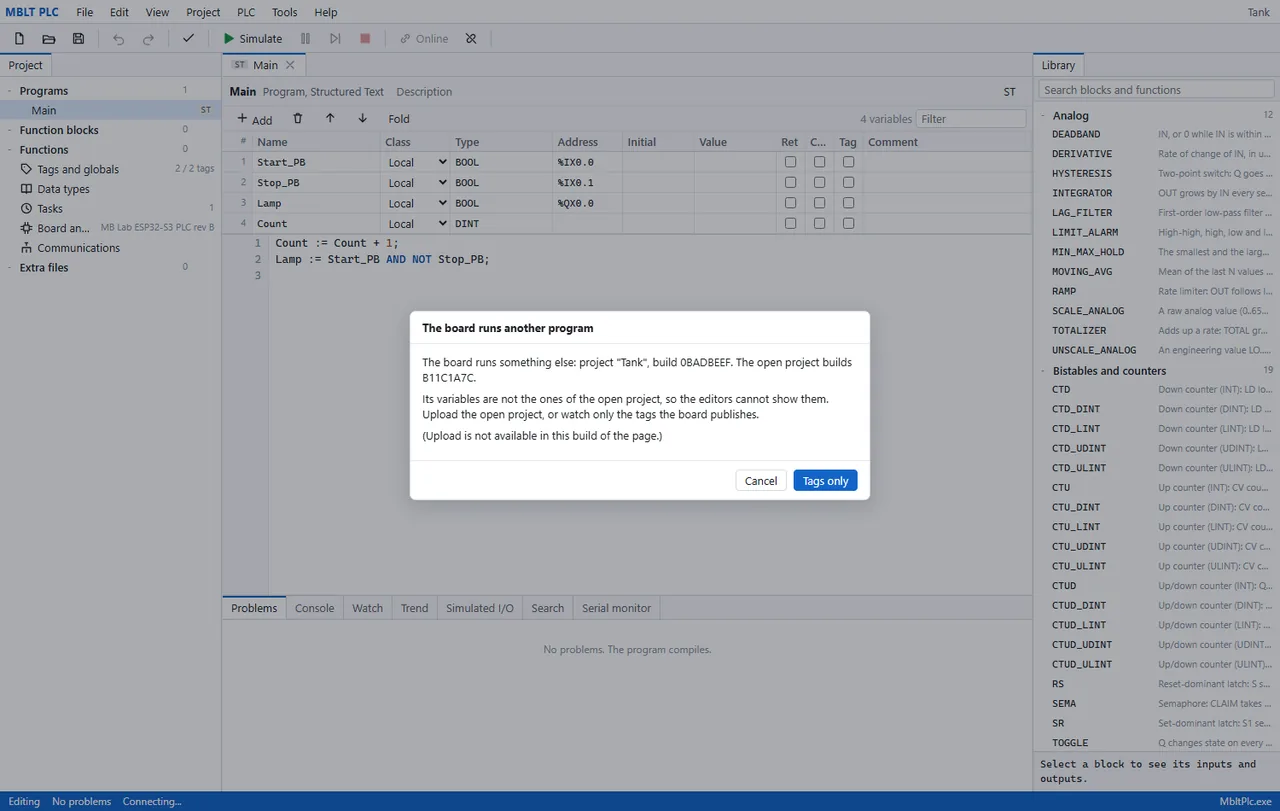
This is the dialog worth the walkthrough. The board is running a different project under a different build id from the one open in the editor, and rather than show numbers against the wrong variables it stops and says so: its variables are not this project's, so the editors cannot show them. The two honest options are offered instead - upload what is open, or watch only the tags the board itself publishes. A debugger that guessed here would be worse than no debugger.
Get in touch
Requirements
- Windows 10 or 11, 64-bit
- About 200 MB of disk
- No .NET install needed — the runtime is bundled
- No Excel needed — workbooks are written directly
Also in the set